How can I make my laptop last 10 years?
To make a laptop last 10 years, you must keep the internal components within the “Elastic Zone“—a state where thermal expansion does not cause permanent mechanical damage. This is achieved by maintaining core temperatures below 80°C through undervolting (to reduce electrical pressure), replacing thermal paste every 24 months (to prevent “pump-out”), and limiting “thermal transients” (sudden temperature spikes) that crack the solder joints connecting your CPU to the motherboard.
Beyond the Cooling Pad: The Engineering Guide to a 10-Year Laptop
The industry wants you to replace your laptop every three to five years. From “planned obsolescence” to the natural degradation of lithium-ion batteries, the odds are stacked against a decade of service. However, modern materials science reveals that a laptop doesn’t usually “die” because the chips wear out; it dies because the mechanical bridges between those chips—the solder joints—succumb to fatigue.
To reach the 10-year milestone, you have to stop thinking like a consumer and start thinking like a Thermal Engineer. This guide uses the physics of the “Elastic Zone” and the Coffin-Manson relation to show you how to manage your laptop’s “thermal budget” and preserve its structural integrity for the long haul.
The Physics of the “Elastic Zone”: Beating the Death Clock
The secret to extreme longevity is found in the stress-strain curve of SAC305 lead-free solder. Inside your laptop, the CPU (Silicon), the Motherboard (Fiberglass), and the Solder (Tin/Silver/Copper) all have different Coefficients of Thermal Expansion (CTE).
When your laptop hits 95°C, these materials expand at different rates, physically pulling at the solder joints.
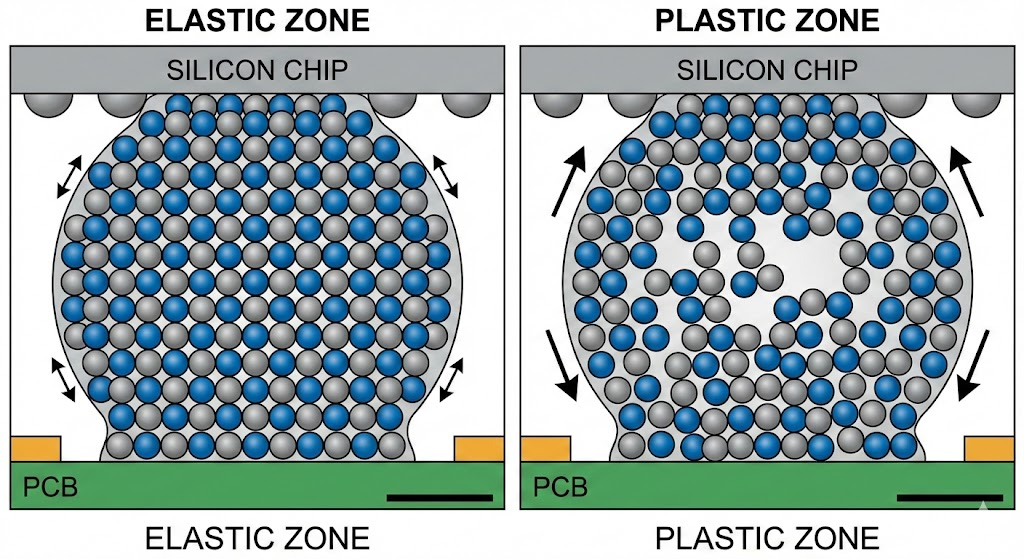
Snippet Bait: The Elastic vs. Plastic Zone
- The Elastic Zone (<80°C): Solder joints expand and contract like a rubber band. They return to their original shape without structural damage.
- The Plastic Zone (>90°C): Solder undergoes “plastic deformation.” Micro-cracks form. Over hundreds of cycles, these cracks grow until the joint snaps, leading to a “dead motherboard.”
Science Fact: The Coffin-Manson Relation
The number of cycles to failure (Nf) is exponentially related to the temperature swing (Delta T). According to the academic report, reducing your peak gaming temperature from 95°C to 80°C doesn’t just make the laptop “cooler”—it can triple the fatigue life of the BGA (Ball Grid Array) connections.
Undervolting: The Silent Guard Against Voltage Stress
Most laptops are “over-volted” from the factory to ensure they work even in worst-case scenarios. This excess voltage is a silent killer through a process called Electromigration.
The Molecular Reality of Circuit Death
Electromigration is the physical movement of atoms in a conductor caused by high-density electrical current. Think of it like a river eroding its banks. Over years of high-voltage use, “voids” (empty spaces) form in the CPU’s microscopic circuits, while “hillocks” (piles of atoms) can cause short circuits.
Pro Tip: The Undervolting Advantage By using a tool like ThrottleStop to reduce your CPU’s core voltage by even 50mV–100mV, you:
- Lower the “Thermal Floor”: The CPU generates less heat at the source.
- Slow Electromigration: Reducing the electrical pressure preserves the “banks” of your nanoscopic circuits, preventing “sudden death” in years 7 through 10.
The 24-Month Rule: Restoring Thermal Interface Materials (TIM)
No matter how high-end your laptop is, the Thermal Interface Material (TIM)—the paste between your chip and the fan—is a ticking clock.
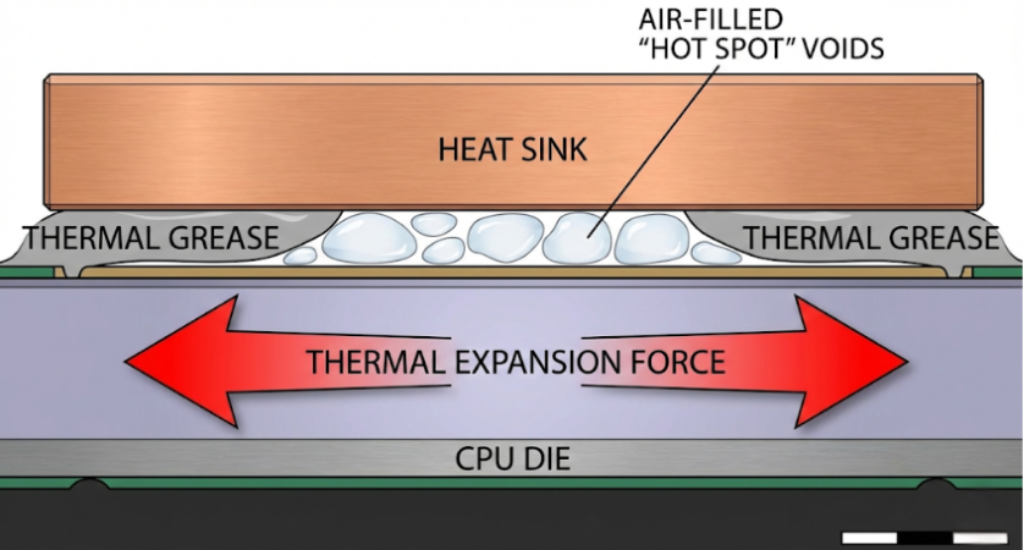
Why “Factory Paste” Fails
Most users believe thermal paste simply “dries out.” The reality is more mechanical: it’s called the “Pump-Out Effect.” As the CPU heats and expands, it physically squeezes the liquid silicone out of the sides. When the CPU cools and contracts, it leaves a void. Over 24 months, this cycle leaves the center of your CPU “naked” and unable to transfer heat.
The Maintenance Schedule:
- Month 1–24: Factory TIM is usually sufficient but declining.
- Month 24: Mandatory repaste. Use a “high-viscosity” carbon-based paste or a Phase-Change Material (PCM) like Honeywell PTM7950. PCMs are solid at room temperature and melt when hot, making them immune to the pump-out effect and perfect for 10-year longevity.
Managing “Thermal Transients”: The Software Hygiene Factor
It isn’t just the level of heat that kills a laptop; it’s the speed of the change. A “Thermal Transient” is a rapid jump from 40°C (idle) to 90°C (loading a game). This “thermal shock” is what causes the most mechanical stress on the motherboard.
Engineering Your Fan Curve
Standard laptop fan curves are “reactive”—they wait until the laptop is hot to spin up. For a 10-year lifespan, you need a “Proactive Curve”:
- Set fans to 30% at 45°C: This keeps the “chassis soak” low.
- Disable “Aggressive” Turbo Boost: In Windows Power Settings, setting the “Maximum Processor State” to 99% instead of 100% disables Intel/AMD Turbo Boost. This can drop temps by 20°C with only a minor hit to performance, drastically reducing the “Delta T” that causes solder fatigue.
| Strategy | Impact on Lifespan | Technical Mechanism |
| Undervolting | High | Reduces Joule Heating & Electromigration |
| 24-Month Repaste | Critical | Prevents TIM “Pump-out” & Thermal Runaway |
| 99% Power State | Medium | Eliminates high-frequency Thermal Transients |
| Dust Cleaning | Essential | Maintains airflow and reduces “Heat Soak” |
Frequently Asked Questions (FAQ)
No. Lithium-ion batteries are chemical devices that degrade regardless of use. To reach 10 years, you should expect to replace the battery at year 5. To slow the decay, use a “Battery Charge Limit” (set to 60% or 80%) if you leave your laptop plugged in most of the time.
Yes, but indirectly. A cooling pad lowers the ambient temperature inside the chassis. This reduces the “heat soak” on the motherboard, helping keep the solder joints in that crucial “Elastic Zone.”
Generally, no. Liquid metal is highly conductive and can react with copper heatsinks over time (gallium infiltration). For a 10-year goal, a high-quality Phase-Change Material (PCM) is safer and more stable.
Apple’s “M-series” chips are highly power-efficient, meaning they spend more time in the Elastic Zone naturally. However, they are also entirely soldered (BGA), meaning if one component fails, the repair is the “Motherboard Tax.” PC longevity depends more on user-led maintenance.
Modern OS updates often include more background processes that create “Thermal Transients.” Using “Efficiency Mode” in Windows 11 to limit background “spikes” is key to keeping an old motherboard stable.
Conclusion: Shifting from Consumer to Thermal Engineer
Reaching a 10-year lifespan is an act of defiance against the “replacement cycle.” By understanding that your laptop is a collection of mechanical joints subjected to thermal stress, you can intervene before the damage becomes permanent.
The Longevity Checklist:
- Keep it in the Elastic Zone: Never let it sit at 90°C+ for sustained periods.
- Lower the Pressure: Undervolt to reduce the “Activity Factor” and heat.
- Respect the 24-Month Rule: Your thermal paste is a consumable, not a permanent part.
Your hardware doesn’t have a pre-programmed death date—it only has a thermal budget. If you spend that budget wisely, your 2026 laptop could still be your daily driver in 2036.