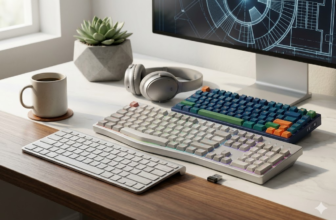
Which keyboard layout is right for you?
A standard 104-key ANSI or ISO QWERTY keyboard layout provides universal operating system compatibility and zero learning curve for general typing, whereas compact 75% or 80% Tenkeyless (TKL) formats optimize shoulder ergonomics by bringing the mouse closer to the body’s midline. If persistent wrist fatigue or repetitive strain injury is a concern, split ergonomic layouts featuring negative tilt and lateral tenting substantially lower intracarpal tunnel fluid pressure compared to conventional flat boards.
For millions of computer users, typing is an automatic sensory reflex executed for hours every single day. Yet, few hardware components create as much chronic physical discomfort, cognitive friction, and purchasing confusion as the humble keyboard layout. Many professionals suffer from persistent forearm fatigue, shoulder tightness, or nagging wrist pain without realizing that their physical desk setup forces their upper limbs into awkward, unergonomic angles. Others transition between laptop keyboards and desktop mechanical boards, only to find their typing cadence completely derailed by missed keycaps, cramped modifier placements, or confusing regional variations.
This comprehensive guide breaks down the macroscopic engineering and biomechanical architecture of the modern standard keyboard layout. By examining the historical path dependence that cemented QWERTY, decoding the physical key zones established by international standards, comparing the electromechanics of mechanical switches against laptop scissor pantographs, and analyzing the postural kinematics that govern carpal tunnel pressure, this guide provides an exhaustive blueprint to help you optimize your typing efficiency and protect your musculoskeletal health.Engineering Fact / Lab Insight: Despite widespread beliefs that Christopher Latham Sholes designed the QWERTY layout to slow human typists down, mechanical patent analyses confirm the true engineering goal: separating frequently co-occurring English digraphs in the typewriter’s physical basket to prevent mechanical typebar collisions at the platen. On standard QWERTY, only 32% of all keystrokes occur on the home row, forcing approximately 17 inches of cumulative finger travel per 1,000 characters typed.
💰Save More with Our Discounts & Coupons!


What Is a Keyboard Layout and How Has It Evolved Historically?
A keyboard layout is the spatial, mechanical, and logical arrangement of keys across a data-input peripheral, coordinating physical switch coordinates, electrical matrix scan codes, and software character mapping tables. Modern keyboard topologies reflect a century and a half of engineering compromises, balancing nineteenth-century mechanical limitations with twentieth-century industrial standardization and modern human-computer interaction principles.
Why Did the QWERTY Layout Achieve Universal Path Dependence Over Dvorak and Colemak?
The enduring supremacy of the QWERTY regular keyboard layout across digital computing stands as one of economic history’s most prominent examples of path dependence. First commercialized in 1874 on the Sholes and Glidden typewriter by E. Remington and Sons, QWERTY solved a specific mechanical failure mode. Early typewriters relied on typebars suspended in a circular basket that swung upward to strike an inked ribbon against a cylindrical platen. When an operator typed rapidly on letters positioned adjacent to one another within the basket, the mechanical arms collided and jammed. Sholes redistributed high-frequency digraphs across opposing sides of the basket, maximizing the angular distance between sequential strikes.
In 1985, economist Paul A. David formulated the thesis that QWERTY’s persistence illustrates market lock-in to an inferior technical standard. David identified three self-reinforcing mechanisms: technical interrelatedness between typewriter hardware and touch-typing motor habits, rapid manufacturing economies of scale, and the quasi-irreversibility of human capital investments. Once touch-typing academies and corporate transcription pools adopted QWERTY en masse, switching costs became prohibitively high for both equipment manufacturers and clerical workers.
However, economists S. J. Liebowitz and Stephen E. Margolis challenged this thesis in their seminal paper The Fable of the Keys. Examining historical records, they revealed that empirical claims celebrating the radical superiority of the Dvorak Simplified Keyboard—patented in 1936 by August Dvorak and William Dealey—relied on methodologically flawed trials. The famous 1940s United States Navy tests that reported massive speed improvements were overseen directly by Lieutenant Commander August Dvorak himself, introducing profound researcher bias and asymmetric training regimens. Subsequent independent tests conducted in 1956 by the General Services Administration showed that while retrained typists achieved modest operational parity on Dvorak, the marginal efficiency gains failed to offset the substantial transitional downtime and retraining costs.
Modern computational linguistics and ergonomic engineering have nonetheless developed different keyboard layouts aimed at optimizing finger travel:
- QWERTY: Remains the global baseline. Retains approximately 32% home-row utilization, a high finger-travel metric of roughly 17 inches per 1,000 characters, a 6.5% same-finger bigram rate, and approximately 50% hand alternation.
- Dvorak: Clusters all primary vowels on the left-hand home row and high-frequency consonants on the right-hand home row. This elevates home-row utilization to roughly 70%, cuts finger travel by nearly 30% down to approximately 12 inches per 1,000 characters, and maximizes hand alternation up to 70%.
- Colemak: Developed in 2006 by Shai Coleman to balance biomechanical efficiency against software shortcut preservation. By relocating only 17 keys while leaving critical operational commands (Z, X, C, and V) in their native QWERTY coordinates, Colemak achieves roughly 74% home-row engagement, lowers finger travel to 13 inches per 1,000 characters, and slashes same-finger bigrams down to 1.6%.
- Colemak-DH: A community-engineered refinement that moves high-frequency D and H keys from the center columns to the lower home positions of the index fingers, virtually eliminating uncomfortable lateral index-finger stretches.
- Workman: Specifically engineered to minimize lateral reaching and vertical row excursions for software developers and programmers.
| Layout Specification | Home Row Utilization (%) | Relative Finger Travel per 1,000 Chars | Same-Finger Bigram Rate (%) | Hand Alternation Rate (%) | Primary Optimization Paradigm |
|---|---|---|---|---|---|
| QWERTY | ~32% | High (~17 inches baseline) | ~6.5% | ~50% | Typebar collision prevention; legacy path dependence |
| Dvorak | ~70% | Low (~12 inches, -30%) | ~2.5% | ~70% | High hand alternation; bilateral vowel/consonant distribution |
| Colemak | ~74% | Very Low (~13 inches, -25%) | ~1.6% | ~60% | In-hand fluid rolls; shortcut preservation (Undo, Cut, Copy, Paste) |
| Colemak-DH | ~74% | Lowest Measured | <1.5% | ~60% | Lateral reach elimination; index-finger curl optimization |
| Workman | ~67% | Low (~11 inches, -35%) | ~1.8% | ~55% | Minimization of center-column strain and vertical excursions |
How Do Cognitive Motor Programming and Chunking Dictate Typing Speed?
In everyday computing, typing speed is driven primarily by cognitive architecture rather than physical switch geometry alone. Cognitive psychologists Donald A. Norman and Diane Fisher demonstrated that layout topology exerts a secondary influence on experienced text-entry rates relative to perceptual encoding and motor preparation.
Skilled transcription typing operates as a dual-loop hierarchical motor control system:
- The Outer Loop: Visually ingests incoming text in multi-character cognitive chunks, maintaining an anticipatory eye-hand span of three to six characters ahead of the fingers.
- The Inner Loop: Decompresses these lexical representations into parallel motor sequences and translates them into ballistic muscle activations across the finger joints.
In their 2016 optical motion capture investigation (How We Type: Movement Strategies and Performance in Everyday Typing), researchers Anna Maria Feit, Daryl Weir, and Antti Oulasvirta observed that self-taught non-standard typists regularly match the speed of formal ten-finger touch typists. Performance variance among typists depends on three motoric pillars: consistent motor mapping (always striking a given key with the same finger), gaze independence (keeping visual attention on the screen rather than hunting across the keycaps), and minimizing unnecessary hand movements across the chassis.
A subsequent 2018 cross-sectional study led by Dhakal, Feit, Kristensson, and Oulasvirta analyzing 136 million keystrokes across 168,000 participants confirmed an average global typing speed of 52 words per minute (WPM). The defining behavioral metric of elite typists (exceeding 80 to 100+ WPM) was “keystroke rollover”—the execution strategy where a subsequent key is depressed before the preceding key has fully returned to rest. Fast typists execute rollover on 40% to 70% of keystrokes, demonstrating that typing is an overlapping, continuous motor stream rather than a series of isolated button presses.
What Are the Four Primary Functional Key Zones Defined by ISO/IEC 9995?
The structural architecture of modern input peripherals is formally codified under the international standard ISO/IEC 9995 (Information technology — Keyboard layouts for text and office systems). Under this technical standard, a full-size standard keyboard diagram segregates hardware keys into four dedicated operational modules: the alphanumeric zone, the numeric zone, the editing and navigation zone, and the function zone.
How Does the Alphanumeric Core Interface with the Numeric, Editing, and Function Clusters?
The physical keyboard structure coordinates distinct operational zones to handle textual composition, arithmetic calculation, document navigation, and operating system interrupts:
- Alphanumeric Section (ISO/IEC 9995-2): Forms the central core of the peripheral, arranged across five horizontal tiers designated as rows A through E (from bottom to top). This zone accommodates the Latin alphabet, numeric digits, standard punctuation, and structural perimeter boundary keys: Space bar, Tab, Caps Lock, Enter, and Backspace.
- Numeric Section (ISO/IEC 9995-5): Positioned at the far right of a full-size chassis, this 17-key computer keypad layout groups numbers, mathematical operands (+, -, *, /), a dedicated decimal separator, and a secondary execution Enter key. Engineered for rapid one-handed calculations, it enables high-speed data entry in financial, accounting, and spreadsheet workflows.
- Editing and Navigation Section (ISO/IEC 9995-5): Bridges the central alphanumeric zone and the right-hand numpad. It houses the directional arrow cluster in an inverted-T configuration alongside discrete document traversal controls: Insert, Delete, Home, End, Page Up, and Page Down. These controls manipulate cursor vectors and textual carets directly without altering lexical buffers.
- Function Section (ISO/IEC 9995-2): Sits along row F across the top periphery of the frame. It incorporates the Escape key, twelve programmable function keys (F1 through F12), and hardware execution controls: Print Screen/SysRq, Scroll Lock, and Pause/Break.
💰Save More with Our Discounts & Coupons!

Understanding this zoning clarifies the dimensional trade-offs between different types of keyboard layouts. While full-size boards house all four physical zones across an elongated 104-to-108 key chassis, compact form factors strategically compress or eliminate outer zones. Tenkeyless (TKL / 80%) boards eliminate the numeric keypad entirely, bringing the mouse closer to the keyboard to reduce shoulder abduction. Compact 75% layouts compress the editing keys directly into the main alphanumeric border, while 60% keyboards strip away dedicated function and arrow rows, relying entirely on secondary firmware layers.
| Form Factor Classification | Percentage Scale | Typical Key Count Range | Physical Sections Retained | Sectional Modulations and Layering Mechanisms | Target Usability Domain |
|---|---|---|---|---|---|
| Full-Size (100%) | 100% | 104–108 keys | Alphanumeric, Editing, Navigation, Numeric, Function | Fully discrete key allocation; zero required function layering for standard characters | Data entry, accounting, traditional desktop PC workstations |
| Tenkeyless (TKL / 80%) | ~80% | 87–88 keys | Alphanumeric, Editing, Navigation, Function | Direct excision of numeric keypad; reduces lateral shoulder rotation during mouse reaches | Software engineering, gaming, compact ergonomic desks |
| Compact 75% | ~75% | 82–84 keys | Alphanumeric, Compressed Navigation, Function | Deletes spatial navigation gaps; condenses arrow keys and editing strip into a single continuous boundary | Custom mechanical keyboards, small-footprint desktop interfaces |
| Compact 65% | ~65% | 67–68 keys | Alphanumeric, Dedicated Arrow Keys, Minimal Editing | Excises dedicated F-row; embeds F1–F12 into numeric row accessible via secondary modifier layers | Compact programming setups, portable productivity setups |
| Compact 60% | ~60% | 61–62 keys | Alphanumeric core exclusively | Excises dedicated arrow clusters, function strips, and editing blocks; operational commands map to internal logic layers | Minimalist travel rigs, specialized coding terminals |
| Ultra-Compact 40% | ~40% | 40–50 keys | Core alpha clusters exclusively | Excises dedicated numeric row and punctuation perimeter; relies heavily on complex multi-layer shifting mechanisms | Niche ergonomics, hyper-specialized alphanumeric transcription |
What Are the Primary Scancode Levels and Modifier State Transforms?
Within an operating system, pressing a physical key does not immediately produce a character glyph. Instead, the hardware transmits an electronic scancode that travels through a hierarchy of architectural transforms codified by ISO/IEC 9995:
- Level 1 Characters (Base State): The primary character emitted when a key switch closes in its unshifted, default state (e.g., lowercase letters a-z or numbers 0-9).
- Level 2 Transformations (Shift State): Depressing the Shift modifier triggers an ISO Level 2 transformation, flipping lowercase characters into uppercase letters or producing primary punctuation marks above numbers (e.g., 1 transforms into !).
- Level 3 Selections (AltGr / Alternate Graphic State): Depressing the Right Alt key—designated as AltGr in international standards—triggers an ISO Level 3 selection. This state exposes specialized national currency symbols (e.g., €), diacritics, or localized secondary glyphs without requiring separate physical switches.
- Level 4 Combinations (Shift + AltGr): Certain international layouts utilize a fourth layer, combining Shift and AltGr to generate obscure typographic symbols, dead-key accents, or non-spacing characters.
- Latching State Modifiers: Keys such as Caps Lock, Num Lock, and Scroll Lock act as persistent latching states. When activated, Caps Lock restricts uppercase conversion strictly to the alphanumeric block, leaving numeric and punctuation keys untouched in standard ANSI configurations.
- System Interrupt Controls: Keys such as Control, Windows/Command (GUI), Alt/Option, and Escape operate as control selectors. They generate low-level operating system interrupts that bypass standard text entry buffers to execute administrative tasks, clipboard operations, or navigation macros.
How Do Physical Keyboard Form Factors and Laptop Architectures Differ?
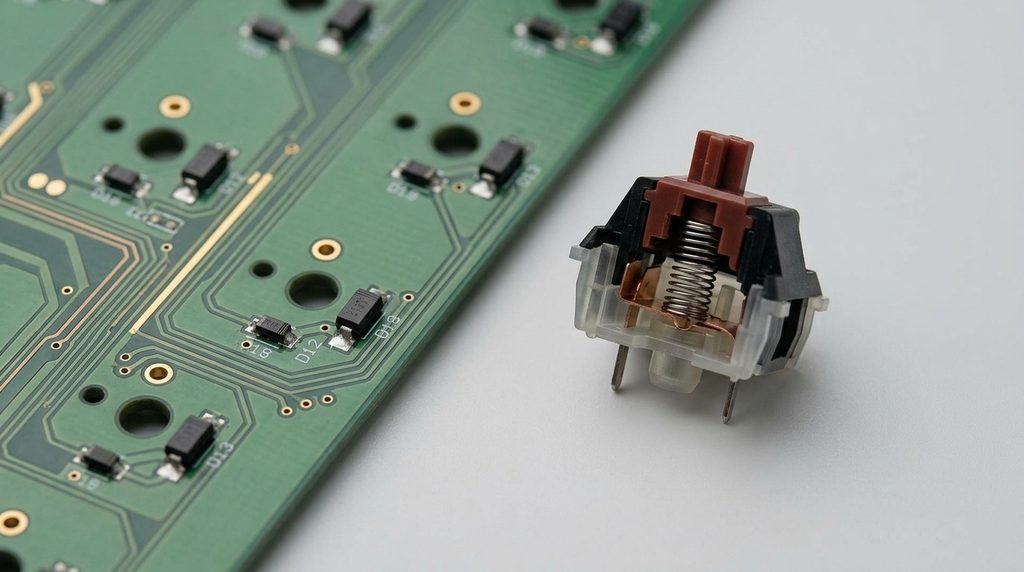
A profound engineering division separates the desktop keyboard pc layout from the ultra-compressed laptop layout keyboard. While desktop enclosures offer generous internal volume for deep mechanical switches, portable notebooks require compact dimensions that force mechanical engineers to innovate within fractions of a millimeter.
What Mechanical Differences Exist Between Desktop Mechanical Switches and Laptop Scissor Pantographs?
Desktop mechanical switches utilize individual mechanical switch housings mounted directly to a printed circuit board (PCB) or structural metal plate. A traditional mechanical switch (such as Cherry MX and its derivatives) features a polyoxymethylene (POM) stem, a steel helical coil spring, and stamped copper-alloy contact leaves. These switches provide a deep total travel distance of 3.5 to 4.0 millimeters, with an actuation point occurring halfway through the stroke at 1.8 to 2.2 millimeters under 45 to 65 centinewtons (cN) of actuation force. Because electrical actuation happens well before the key bottoms out against the housing base, mechanical switches minimize hard joint impacts while offering 50 to 100 million keystrokes of operational durability.
In contrast, the spatial limits of portable notebooks demand an ultra-slim laptop keyboard structure. Engineers solve this challenge using scissor-switch mechanisms based on a kinematic pantograph design. Two interlocking polymer arms form an X-shaped scissor hinge that slides along stamped metal retaining channels on the chassis baseplate. This pantograph linkage guides the keycap downward along a strictly parallel plane, completely preventing keycap tilting and stabilizing off-center strikes. Inside the pantograph sits a miniature elastomeric silicone rubber dome. When depressed, the dome deforms elastically to produce a sharp tactile threshold before collapsing to press a conductive carbon pill against a flexible multi-layer membrane. Modern scissor switches achieve nominal travel distances of 1.0 to 1.8 millimeters with crisp 55 to 65 cN actuation.
The fragility of ultra-thin mechanisms became evident in the late 2010s with Apple’s ultra-shallow butterfly switch. To shave chassis thickness, the butterfly design replaced the scissor pantograph with a single-piece molded synthetic elastomer hinge, reducing total key travel down to an unprecedented 0.5 to 0.7 millimeters. However, this shallow kinematic design left virtually no tolerance for foreign particles. Microscopic dust grains, crumbs, and airborne debris jammed the wing mechanism, preventing physical collapse. Furthermore, the lack of deceleration travel caused typists to bottom out forcefully against the rigid aluminum frame, accelerating repetitive joint shock and inducing fatigue. Notebook engineering subsequently returned across the industry to the resilient scissor-switch pantograph.
| Switch Topology | Physical Mechanism | Nominal Travel Range | Actuation Point Distance | Actuation Force Profile | Structural Advantages | Structural Vulnerabilities |
|---|---|---|---|---|---|---|
| Mechanical (Cherry MX Style) | Individual housing, POM stem, coil spring, copper contact leaves | 3.5 – 4.0 mm | 1.8 – 2.2 mm | 45 – 65 cN (linear, tactile, clicky) | High durability (50–100M actuations); customizable travel; hot-swappable; user repairability | Excessive vertical height; unsuited for portable or low-profile designs |
| Rubber Dome Membrane | Full-sheet elastomeric dome array over a multi-layer flexible circuit | 3.0 – 4.0 mm | Bottom of stroke (~3.5 mm) | 50 – 70 cN (spongy, non-linear collapse) | Cost-effective; dust and splash resistant; low acoustic emission | Degradation of silicone elasticity over time; uneven tactile feedback across keys |
| Scissor-Switch (Pantograph) | Interlocking X-frame stabilizers surrounding a miniature rubber dome | 1.0 – 1.8 mm | 1.0 – 1.4 mm | 55 – 65 cN (crisp, short-displacement collapse) | Extremely low z-axis height; uniform depression across entire keycap surface; stable typing | Susceptible to structural clip failure upon keycap removal; difficult debris clearance |
| Butterfly Switch (Historical) | Symmetrical rigid wings with a centralized synthetic elastomer hinge | 0.5 – 0.7 mm | 0.4 – 0.5 mm | 60 – 65 cN (shallow, rigid bottom-out) | Ultra-thin footprint; minimal lateral perimeter tilt | Severe susceptibility to particulate jamming; high joint impact fatigue; manufacturing defect rates |
| Hall Effect / Magnetic Switch | Permanent magnet in stem moving past underlying PCB Hall sensor | 3.5 – 4.0 mm | Dynamically tunable (0.1 – 4.0 mm) | 30 – 60 cN (purely linear magnetic flux) | Near-infinite switch lifespan; adjustable actuation triggers; zero physical contact bounce; rapid trigger support | Elevated standby power consumption; susceptibility to external magnetic field interference |
How Does Electrical Matrix Scanning Prevent Ghosting and Achieve Full NKRO?
Beneath the physical key switches sits an electrical circuit matrix organized in intersecting rows and columns. A keyboard’s onboard microcontroller continuously scans this matrix by pulsing electrical voltage sequentially down individual columns while sensing corresponding voltage spikes across rows. Because physical metal switch leaves mechanically bounce against each other for several milliseconds upon closing, microcontroller firmware executes digital debounce filtering windows (typically lasting 2 to 10 milliseconds) to ensure that a single key strike registers as one clean input rather than a burst of spurious signals.
In basic membrane circuits lacking discrete isolation hardware, simultaneous keypresses cause a flaw known as matrix ghosting. If three keys sharing intersecting rows and columns are closed simultaneously, electrical current back-feeds across the circuit lines. The microcontroller misinterprets this current path and registers a phantom “ghost” press at the fourth corner of the matrix rectangle. To prevent phantom typing, inexpensive consumer keyboards implement directional blocking algorithms that drop the conflicting input (restricting the peripheral to 2-Key Rollover) or optimize circuit trace paths so that common multi-key typing combinations avoid shared matrix cells.Engineering Fact / Lab Insight: True N-Key Rollover (NKRO)—the ability of every physical switch on the keyboard to register simultaneously without dropped keys or phantom inputs—requires integrating a discrete surface-mount switching diode into every single switch junction on the printed circuit board. These diodes enforce unidirectional current flow, preventing cross-matrix back-feeding and electrically isolating every switch contact.
At the host communication interface, data transmission is governed by the Universal Serial Bus Human Interface Device (USB HID) protocol. Under legacy USB standards, the native USB HID “Boot Protocol”—engineered to ensure compatibility with basic PC BIOS/UEFI environments before operating system drivers load—uses a rigid eight-byte data frame. In this packet, byte 0 is a bitmask reserved for the eight modifier keys (Shift, Ctrl, Alt, GUI), byte 1 is an OEM-reserved byte, and bytes 2 through 7 contain an array of up to six active USB HID key scancodes. Consequently, firmware strictly adhering to the basic USB Boot Protocol is limited to 6-Key Rollover (6KRO). Modern high-performance keyboards achieve full NKRO over USB by implementing variable-length HID Report Descriptors that broadcast a comprehensive bitmap spanning all 104+ key states across multiple high-speed data packets.
What Are the Global Regional Hardware Standards and How Can Users Diagnose Their Layout?
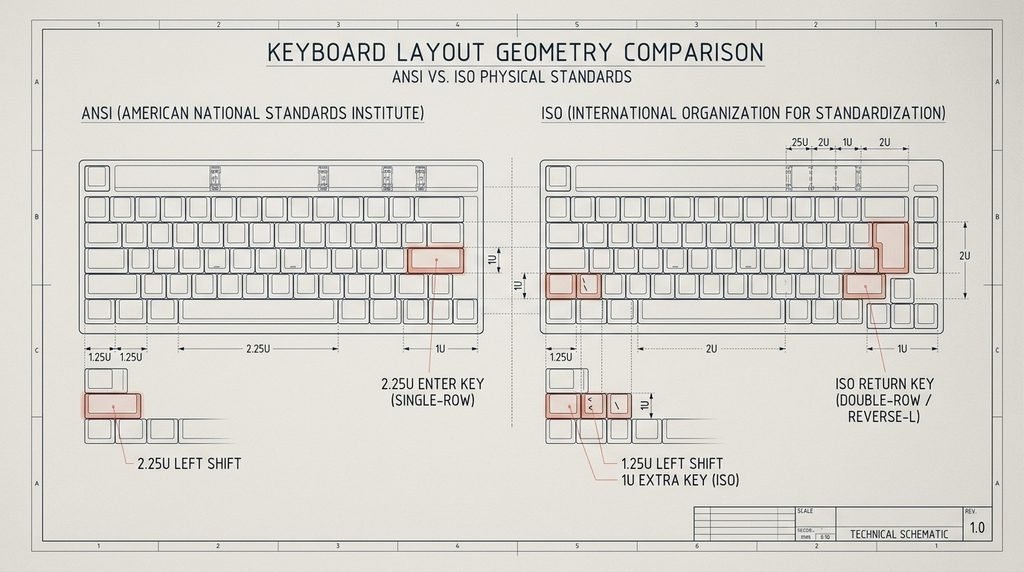
The global distribution of computer hardware requires accommodating diverse linguistic alphabets, accents, and punctuation within standardized plastic keycaps. The physical construction of desktop and laptop keyboards across world markets is governed by three primary structural standards: ANSI, ISO, and JIS.
What Are the Key Distinctions Between ANSI, ISO, and JIS Physical Geometries?
The physical differences between international keyboards are defined by standardized key unit measurements (where 1U equals the width of a standard single alphanumeric key, or 19.05 mm center-to-center):
- ANSI Standard (ANSI-INCITS 154-1988): Ubiquitous across North America and widely used throughout Latin America and Asia. A standard full-size ANSI board features exactly 104 keys. Its defining physical signatures are a single-row horizontal Enter key measuring 2.25U in width and an elongated Left Shift key also measuring 2.25U. The space bar spans a wide 6.25U.
- ISO Standard (ISO/IEC 9995-2): Standard across the United Kingdom, continental Europe, and Latin America. A full-size ISO keyboard houses 105 keys. Structurally, ISO truncates the Left Shift key down to 1.25U to fit an extra adjacent 1U key (used for characters like backslash or greater-than/less-than signs). In addition, ISO replaces the horizontal Enter key with a two-row-tall vertical “reverse-L” Return key that measures 1.5U wide at the top and 1.25U at the bottom.
- JIS Standard (JIS X 6002): Engineered specifically for the Japanese domestic market, featuring 108 to 112 physical keys. While retaining an oversized vertical Return key, JIS drastically compresses the bottom space bar down to approximately 2.0U to 2.5U. This compression makes room for dedicated thumb-operated language conversion keys: Muhenkan (non-conversion), Henkan (conversion between phonetic Kana and Kanji ideographs), and the Hiragana/Katakana toggling switch.
| Structural Feature | ANSI Standard (North America) | ISO Standard (Europe / International) | JIS Standard (Japan – JIS X 6002) |
|---|---|---|---|
| Total Standard Key Count (Full-Size) | 104 Keys | 105 Keys | 108 – 112 Keys |
| Return / Enter Key Geometry | Horizontal, single-row height (2.25U width) | Vertical, double-row height (“reverse-L” shape) | Vertical, double-row height (stepped reverse-L) |
| Left Shift Key Geometry | Unitary wide key (2.25U) | Shortened key (1.25U) adjacent to extra 1U key | Variable width (frequently shortened or 2.25U) |
| Space Bar Geometry | Elongated (6.25U standard width) | Elongated (6.25U standard width) | Ultra-shortened (~2.0U to 2.5U width) |
| Dedicated IME Thumb Switches | Absent | Absent | Muhenkan, Henkan, Kana keys present |
| Typical Alphanumeric Graphic Sets | QWERTY | QWERTY, AZERTY (France), QWERTZ (Germany) | Dual legends: Latin QWERTY and Japanese Kana |
Superimposed on these physical chassis geometries are localized character layouts. In France and Belgium, the AZERTY layout swaps the positions of A and Q, exchanges Z and W, places M to the right of L, and requires holding Shift to access top-row numbers. In Germany and Central Europe, the QWERTZ layout swaps Z and Y—reflecting the high frequency of Z in German prose compared to Y—and dedicates keys along the right home and number rows to umlauts (ä, ö, ü) and the Eszett (ß).
💰Save More with Our Discounts & Coupons!
What Type of Keyboard Do I Have: How Do You Diagnose Physical Chassis and Operating System Mapping?
Determining your exact keyboard configuration requires a systematic two-step diagnosis: inspecting physical hardware geometries, then checking operating system software mapping tables.Step 1: Inspect Physical Enter & Left Shift
├─ Horizontal 1-Row Enter (2.25U) + Wide Left Shift (2.25U) ──> ANSI Hardware
├─ Vertical 2-Row Enter (Reverse-L) + Short Left Shift (1.25U) ─> ISO Hardware
└─ Vertical 2-Row Enter + Short Space Bar (~2U) + Thumb Toggles ─> JIS Hardware
Step 2: Inspect Top-Row Alphanumeric Keys (Row D, Positions 1-6)
├─ Keys read Q – W – E – R – T – Y ──────────────────────────────> QWERTY Graphic Mapping
├─ Keys read A – Z – E – R – T – Y ──────────────────────────────> AZERTY Graphic Mapping
└─ Keys read Q – W – E – R – T – Z ──────────────────────────────> QWERTZ Graphic Mapping
Step 3: Verify Operating System Input Preferences
└─ Check Windows Settings > Time & Language > Language & Region > Keyboard Layout
(or macOS System Settings > Keyboard > Text Input > Input Sources)
| Diagnostic Criterion | Inspection Protocol | Physical or Logical Indicator | Structural / System Determination |
|---|---|---|---|
| Primary Physical Standard | Measure Enter / Return key height and Left Shift width | Single-row horizontal Enter (2.25U), wide Left Shift (2.25U) | ANSI Hardware Standard (North American baseline) |
| Secondary Physical Standard | Measure Enter / Return key height and Left Shift width | Two-row vertical reverse-L Enter, short Left Shift (1.25U) plus extra 1U key | ISO Hardware Standard (European / International baseline) |
| Tertiary Physical Standard | Inspect bottom row modifier keys and space bar span | Short space bar (~2U–2.5U) flanked by Muhenkan and Henkan switches | JIS Hardware Standard (Japanese domestic baseline) |
| Alphanumeric Logic Mapping | Read positions 1 through 6 on top alphanumeric tier (Row D) | Legends read Q-W-E-R-T-Y vs. A-Z-E-R-T-Y vs. Q-W-E-R-T-Z | Alphanumeric Character Layout Classification |
| System Software Configuration | Query OS Language & Input settings (Windows / macOS / Linux) | Virtual input engine scancode mapping table | Logical Operating System Layout Assignment |
Because physical keyboard switches transmit layout-agnostic hardware scancodes, your operating system’s software settings dictate whether that electrical signal outputs Latin letters, Cyrillic characters, or East Asian phonetic symbols. This separation between physical chassis construction and software mapping provides immense flexibility when configuring multi-language computing environments.
What Biomechanical Principles Govern Keyboard Ergonomics and Upper Limb Strain?
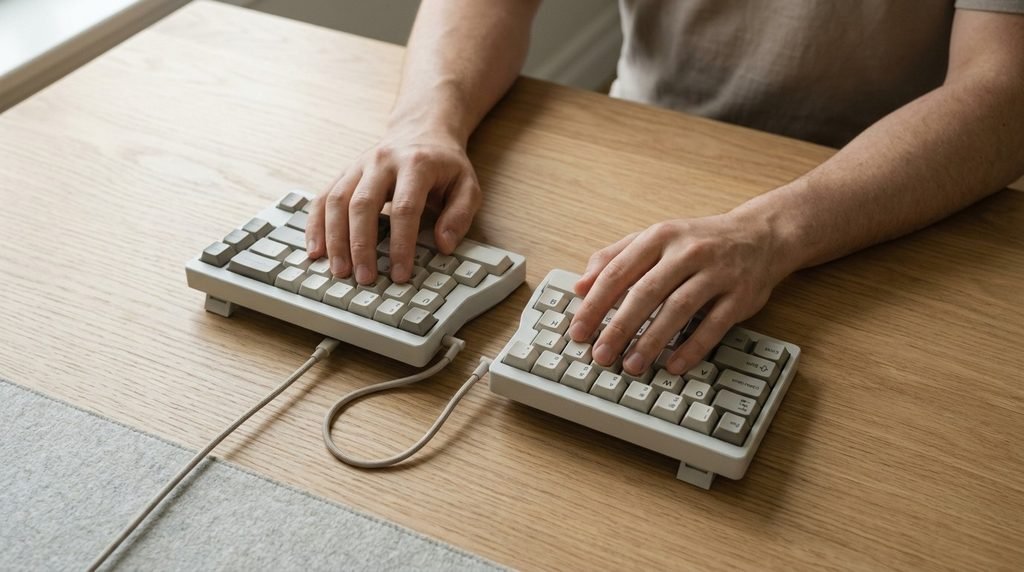
Typing on a conventional, flat, non-split peripheral forces the human body into sustained musculoskeletal compromises. Over decades of clinical ergonomic research, investigators have quantified how traditional keyboard designs induce chronic muscular strain and elevate pressure inside the wrist.
How Do Ulnar Deviation, Forearm Pronation, and Wrist Extension Elevate Carpal Tunnel Pressure?
Seminal biomechanical research led by Dr. David Rempel at the University of California Ergonomics Laboratory has quantified how flat keyboards force the upper extremities into three simultaneous postural deviations:
- Forced Ulnar Deviation: Because the distance between the left and right home keys is substantially narrower than the adult shoulder girdle, typists must angle their hands outward toward the fifth digit within the transverse plane. This produces an average of 14° to 17° of continuous ulnar deviation.
- Forced Forearm Pronation: Requiring the palms to rest completely flat and parallel to the desk forces the forearms to rotate axially into 65° to 75° of pronation. This twists the radius bone over the ulna, producing continuous static muscular tension throughout the forearm flexor and pronator teres muscle groups.
- Static Wrist Extension: The upward slope built into desktop keyboard chassis—frequently worsened by users deploying rear kickstand feet—forces the hand upward within the sagittal plane, inducing static wrist extension angles averaging 15° to 25°.
Engineering Fact / Lab Insight: Clinical trials using fluid-filled catheter transducers to measure in vivo intracarpal tunnel hydrostatic pressure during active typing confirm that non-neutral wrist postures directly elevate pressure on the median nerve. While resting carpal tunnel pressure in a neutral wrist posture ranges between 5 and 15 mmHg, adopting typical extended and ulnarly deviated postures on a standard flat keyboard causes internal pressures to exceed 30 to 40 mmHg (approximately 4.0 kPa). Sustained pressures exceeding 30 mmHg impair microvascular blood flow through epineural capillary networks, producing nerve ischemia, paresthesia, flexor tenosynovitis, and long-term Carpal Tunnel Syndrome.Postural Strain Mechanisms on Conventional Keyboards:
┌──────────────────────────┐ ┌──────────────────────────┐ ┌──────────────────────────┐
│ Ulnar Deviation │ │ Forearm Pronation │ │ Wrist Extension │
│ (14°–17° Outward Bend) │ │ (65°–75° Inward Twist) │ │ (15°–25° Upward Cock) │
└────────────┬─────────────┘ └────────────┬─────────────┘ └────────────┬─────────────┘
│ │ │
└─────────────────────────────────┼─────────────────────────────────┘
▼
┌──────────────────────────────────┐
│ Intracarpal Hydrostatic Tunnel │
│ Pressure Surges to 30-40+ │
│ mmHg (Normal: 5-15 mmHg) │
└────────────────┬─────────────────┘
▼
┌──────────────────────────────────┐
│ Epineural Capillary Bed │
│ Ischemia & Chronic Median │
│ Nerve Compression (CTS) │
└──────────────────────────────────┘
Which Workstation Adjustments and Split Angles Prevent Musculoskeletal Fatigue?
To counteract repetitive strain injuries, ergonomic keyboard interventions modify the spatial geometry of the key matrix to match natural human anatomy:
- Split Keyboards and Opening Angles: Bifurcating the alphanumeric matrix into two separate modules angled outward by an opening angle of 10° to 25° (or utilizing fully independent split halves positioned at shoulder width) completely eliminates forced ulnar deviation, aligning the hand within 5° of a neutral straight line with the forearm.
- Lateral Tenting: Elevating the center spine of the split board by 10° to 30° introduces lateral tenting. This unwinds forearm pronation from 75° down to a relaxed 45° angle, matching the natural rest position of a handshake.
- Negative Tilt Slope: Elevating the front palm rest while dropping the rear function row downward (producing a negative slope of -5° to -15°) prevents the hands from cocking upward, reducing static wrist extension toward zero degrees.
- Forearm Support Platforms: Clinical trials demonstrate that resting the proximal forearms on stable, padded armrests relieves static muscle load across the upper trapezius while lowering wrist extension angles compared to letting the arms float unsupported over the desk.
To optimize your workstation setup:
- Adjust Chair and Desk Height: Set your chair so your feet rest flat on the floor with thighs parallel to the ground. Adjust your desk or keyboard tray until your elbows rest at approximately 90° to 100° with forearms parallel to the floor.
- Flatten Rear Kickstands: Always keep the rear flip-out feet of your keyboard closed. Using rear kickstands artificially increases wrist extension and spikes carpal tunnel pressure.
- Position Split Modules at Shoulder Width: If using a split ergonomic keyboard, place the modules directly in line with your shoulders to eliminate chest hunching and upper-back fatigue.
- Keep Pointing Devices Close: Position your mouse or trackpad immediately adjacent to the typing cluster to prevent wide shoulder reaches that strain the rotator cuff.
💰Save More with Our Discounts & Coupons!
Technical Decision Matrix: Choosing the Right Keyboard Layout
| User Profile / Use Case | Recommended Architecture | Primary Advantages | Critical Trade-Offs | Key Hardware Recommendations |
|---|---|---|---|---|
| Financial Analysts & Accountants | Full-Size (100%) ANSI / ISO with Dedicated Numpad | High-speed numeric calculation; dedicated operators; zero function layering | Wide footprint forces excessive right-hand mouse reaching | Quality mechanical switches with tactile feedback; full 17-key numpad array |
| Software Engineers & Developers | Tenkeyless (TKL 80%) or Compact 75% | Optimal desk space; mouse sits close to body midline; full arrow and F-key retention | Requires muscle memory for numeric row; lacks dedicated accounting cluster | Hot-swappable mechanical PCB; QMK/VIA programmable layers; PBT keycaps |
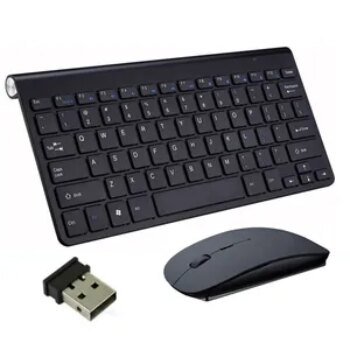
| Remote Workers & Mobile Travelers | Low-Profile 65% or Scissor-Switch Compact | Ultra-portable footprint; minimal weight; stable scissor pantographs | Lacks dedicated function strip; relies on Fn modifier key chords | Low-profile mechanical switches or durable pantograph scissor switches |
| RSI Sufferers & High-Volume Typists | Fully Split Ergonomic Keyboard with Tenting | Eliminates ulnar deviation; tenting relieves pronation; negative tilt drops carpal pressure | Steep initial learning curve; non-standard keycap sizing; higher hardware cost | Split mechanical chassis (10°–25° split, 10°–30° tenting); integrated palm rests |
Frequently Asked Questions (FAQ)
The most widely used keyboard layout across global personal computing is QWERTY paired with the ANSI physical standard in North America and parts of Asia, and the ISO physical standard across Europe. First introduced commercially on the 1874 Sholes and Glidden typewriter, QWERTY achieved universal adoption due to early industrial path dependence, corporate touch-typing training, and standardized operating system defaults.
Independent scientific research indicates that switching layouts does not automatically yield dramatic typing speed increases. While Dvorak and Colemak dramatically reduce finger travel and increase home-row usage from 32% up to roughly 70–74%, comprehensive studies show that typing speed is governed primarily by cognitive chunking, anticipatory eye-hand span, and motor habit consistency. However, alternative layouts significantly reduce physical finger exertion and can improve typing comfort.
The two defining physical distinctions are the Enter key and the Left Shift key. ANSI keyboards feature a single-row horizontal Enter key (2.25U wide) and an elongated Left Shift key (2.25U wide), totaling 104 keys on a full-size board. ISO keyboards feature a two-row vertical reverse-L Return key and a shortened Left Shift key (1.25U wide) adjacent to an extra 1U key, totaling 105 keys.
Inexpensive membrane keyboards route electrical traces in a grid without individual isolation hardware. When three keys sharing intersecting rows and columns are pressed at the same time, current back-feeds across the circuit, causing the microcontroller to register a false fourth keypress known as ghosting. High-performance mechanical keyboards prevent this by installing a surface-mount switching diode at every key junction, ensuring full N-Key Rollover (NKRO).
A split ergonomic keyboard separates the alphanumeric keys into two angled halves, preventing forced ulnar deviation by keeping wrists straight. Incorporating lateral center tenting (10° to 30°) unwinds forearm pronation toward a natural handshake posture, while negative downward tilt prevents static wrist extension. Clinical trials show that these adjustments lower internal carpal tunnel pressure from hazardous levels (30–40 mmHg) back toward healthy resting baselines (5–15 mmHg).
Conclusion: Engineering Your Ideal Typing Interface
The modern keyboard layout is far more than an arbitrary collection of letter keys; it is a precision interface that connects human cognitive thought with digital computation. Whether you navigate thousands of lines of code, balance complex financial models, or draft long-form prose, understanding the standards, physical mechanisms, and ergonomics of your keyboard empowers you to make informed hardware choices that boost productivity and safeguard your physical health.
Take control of your workstation ergonomics today. Fold down those rear keyboard feet to eliminate wrist extension, consider a compact or split layout to bring your mouse within natural reach, and verify your regional hardware standards to build a typing environment engineered for lifelong comfort and peak efficiency.