Stuck with a MageGee keyboard that isn’t working right? You’ve come to the right place. The number one fix for most issues—from unresponsive keys to strange lighting—is a factory reset. This guide will show you exactly how to do it.
Instead of needing software, MageGee keyboards are controlled by key combinations. The most important one to know is Fn + Esc, the master reset command.
Quick Reset Guide: The Answer in 5 Seconds
To factory reset most MageGee keyboard models, press and hold the
Fn + Esckeys together for 3-5 seconds. The keyboard’s backlights will flash to confirm the reset is complete. For 60% compact models like the MK-Box, useFn + Spacebar.
This simple action can solve a majority of problems instantly. For more detailed instructions and alternative fixes, see our full guide below.
💰Save More with Our Discounts & Coupons!
- 1
- 2
- 3
- …
- 6
- Next Page »
How to Factory Reset Your MageGee Keyboard with Fn + Esc
This is the primary method and works for most full-size and TKL (tenkeyless) MageGee keyboards, such as the MK-Star and MK-Storm.
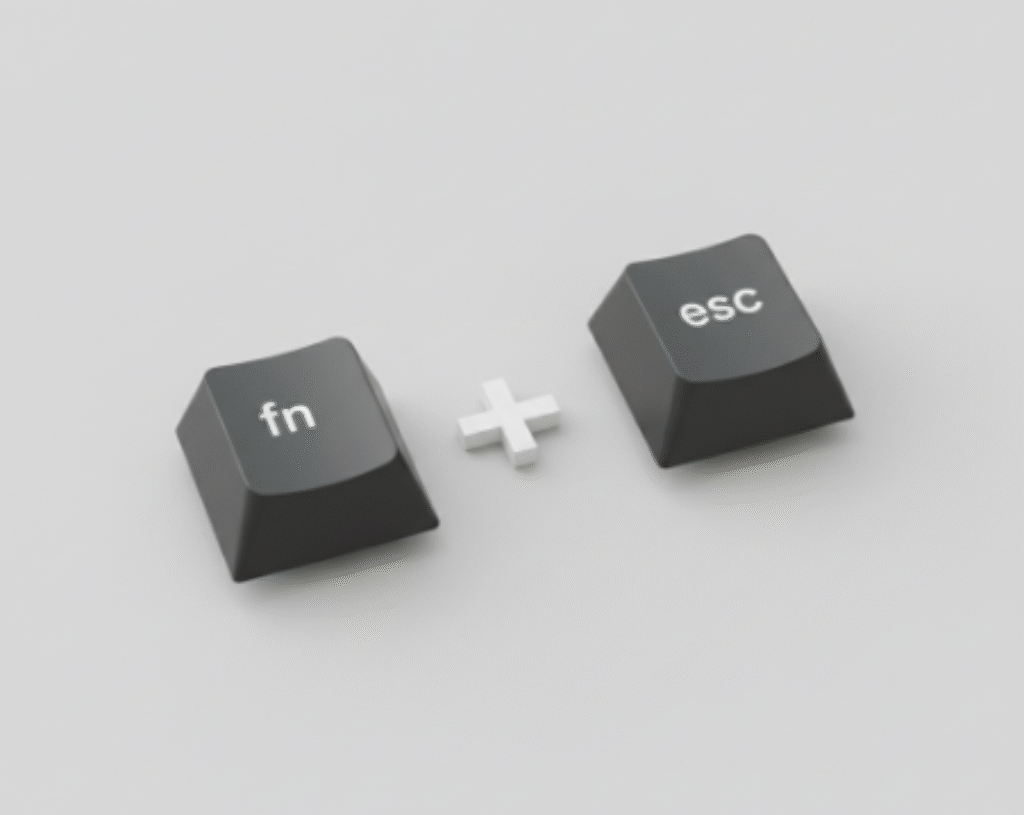
- Keep the Keyboard Plugged In: Ensure your keyboard is connected to your computer and powered on.
- Press and Hold: Locate the
Fnkey (usually in the bottom-left corner) and theEsckey. Press and hold both keys down at the same time. - Wait for the Flash: Continue holding the keys for about 3 to 5 seconds. You will see the keyboard’s backlighting flash, which signals that the reset has been successful.
- Release and Test: Release the keys. Your keyboard has now been restored to its factory default settings. Test the keys to see if your issue is resolved.
This process is a complete factory reset. It will clear any custom lighting modes and return all functions to their original state.
How to Reset the MageGee MK-Box and 60% Models with Fn + Space
If you have a compact 60% keyboard like the popular MageGee MK-Box, the reset combination is different due to the compressed layout.
The Fn + Esc combination may not work. Instead, use this alternative method:
- Press and Hold
Fn + Spacebar: For these smaller models, the factory reset is triggered by holding theFnkey and the Spacebar for about 3 seconds. The lights will flash to confirm the reset.
Why the different command? Compact keyboards often assign multiple functions to fewer keys, and the Fn + Spacebar combination is used to prevent conflicts with other shortcuts.
Troubleshooting: What to Do When a Reset Doesn’t Work?
If Fn + Esc or Fn + Spacebar doesn’t solve your problem, don’t worry. Here are the next steps to take.
Troubleshooting: Fixing the “MageGee Keyboard Only Logo Light” Issue
A common issue reported by users is when the keyboard seems unresponsive, and the only light that’s on is the MageGee logo. This often means the keyboard is stuck in a strange state or isn’t getting enough power.
- Perform a Full Reset: First, try the appropriate factory reset for your model (
Fn + EscorFn + Spacebar). This is the most common fix. - Unplug and Replug: Disconnect the keyboard from your computer, wait for 30 seconds, and plug it back in. This simple power cycle can resolve many issues.
- Try a Different USB Port: The USB port you are using might not be providing enough power. Plug the keyboard into a different port on your computer, preferably one directly on the motherboard (at the back of a desktop PC). Avoid using USB hubs if possible.
- Test on Another Computer: If the issue persists, plug the keyboard into another computer. If it works there, the problem is likely with your original computer’s drivers or USB settings.
💰Save More with Our Discounts & Coupons!
- 1
- 2
- 3
- …
- 6
- Next Page »
Do MageGee Keyboards Use Software?
No, MageGee keyboards do not use software to control their settings or lighting. This plug-and-play design is intentional, making them incredibly user-friendly right out of the box. Instead of navigating confusing apps, all you need is the Fn key to customize everything from backlight colors and effects to brightness levels.
This hardware-based control system means your settings are saved directly on the keyboard, ensuring they work consistently across different computers without needing to reinstall anything.
Your MageGee Keyboard Settings Cheat Sheet
Need a quick answer? This table covers the most common Magegee keyboard settings and shortcuts. Keep in mind that combinations can vary slightly depending on your specific model.
| Key Combination | Function |
|---|---|
Fn + Ins or Fn + \ | Cycle through different lighting modes. |
Fn + Del | Change backlight color (cycles through solid colors). |
Fn + ↑ / Fn + ↓ | Increase or decrease backlight brightness. |
Fn + ← / Fn + → | Decrease or increase the speed of the lighting effect. |
Fn + W | Swap the WASD keys with the Arrow keys. |
Fn + Esc (hold for 3s) | Reset the keyboard to factory default settings. |
Fn + Spacebar (hold for 3s) | Alternative reset for 60% and other compact models. |
How to Change Lighting Modes on a MageGee Keyboard
One of the best features of a MageGee keyboard is its variety of built-in lighting effects. Changing them is as simple as pressing two keys. While the exact key can differ by model, the most common combinations are:
Fn + Ins: This is the primary combination for cycling through the different preset lighting modes, like breathing, wave, or ripple effects.Fn + \: On some models, the backslash key is used to switch between lighting modes.- Other Keys: Some layouts might use
Fn + Home,Fn + Scroll Lock, orFn + PGDNto achieve the same result.
Experiment with these combinations to find the dynamic effect that best fits your setup. Many popular models come with over a dozen unique lighting modes waiting to be discovered.
💰Save More with Our Discounts & Coupons!
- 1
- 2
- 3
- …
- 6
- Next Page »
How Do I Control the LED Lights on My Keyboard?
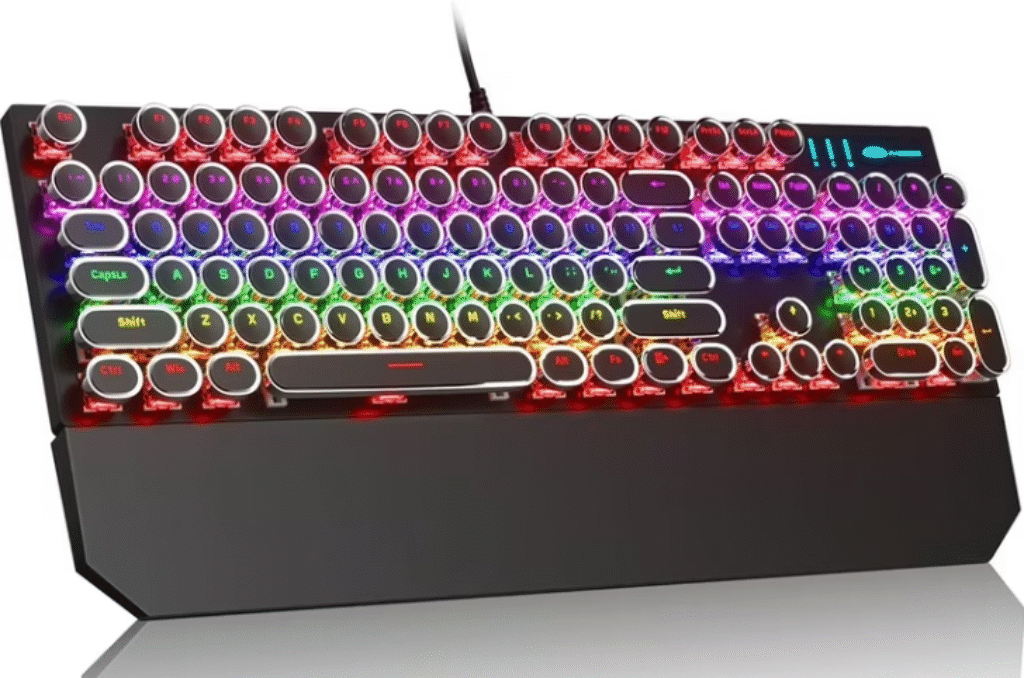
Once you’ve found a lighting mode you like, you can fine-tune it to perfection. Whether you want to dim the lights for late-night focus or set a single, solid color to match your rig, here’s how.
Adjusting Brightness and Speed
Full control over your keyboard’s lighting is right at your fingertips. No need to open a settings menu—just use these intuitive shortcuts:
- For Brightness: Press
Fn + ↑to increase the brightness andFn + ↓to decrease it. There are usually 3-5 levels of brightness to choose from, plus the option to turn the lights off completely. - For Speed: Press
Fn + →to speed up the lighting effect andFn + ←to slow it down. This works for dynamic modes like wave, breathing, and ripple effects.
How to Set a Single Static Color
Tired of rainbow effects and just want one clean, solid color? Many MageGee RGB models allow this. After cycling through the main lighting modes, you’ll often find one or two modes dedicated to static colors.
To select your color, press Fn + Del repeatedly. Each press will cycle through the available solid color options, such as red, blue, green, white, pink, and yellow. This is perfect for creating a cohesive aesthetic with the rest of your gaming setup.
How to Fix MageGee Keyboard Lights Not Working (The #1 Issue)
If your MageGee keyboard’s lights are not working, you’re not alone—it’s the most common issue users face, and the fix is usually very simple. Before trying anything else, follow these steps.
- Check Brightness First: This solves the problem 90% of the time. You may have accidentally turned the brightness all the way down. Press and hold the
Fnkey, then repeatedly tap the Up Arrow key (↑) to increase the backlight brightness. - Perform a Factory Reset: If brightness isn’t the issue, a reset will restore all lighting functions. This is the definitive fix for glitched or unresponsive backlights.
- For most models: Press and hold
Fn + Escfor 3-5 seconds. - For compact 60% models: Press and hold
Fn + Spacebarfor 3 seconds.
- For most models: Press and hold
- Power Cycle the Keyboard: Unplug the keyboard from your computer, wait for 30 seconds, and plug it back in. This simple step can resolve temporary power or connection issues that affect the lighting.
How to Fix When WASD and Arrow Keys are Swapped
Because MageGee keyboards are controlled entirely by hardware shortcuts, it’s easy to accidentally change a setting. Here’s how to fix the two most common issues users face.
If your W, A, S, and D keys suddenly start acting like arrow keys, you’ve likely activated the keyboard’s input swap mode. This feature is useful for certain games, but confusing if turned on by accident.
The fix is incredibly simple: press Fn + W simultaneously. This key combination toggles the function on and off, instantly returning your WASD keys to their normal operation.
💰Save More with Our Discounts & Coupons!
- 1
- 2
- 3
- …
- 6
- Next Page »
Getting the Most Out of Your MageGee Keyboard
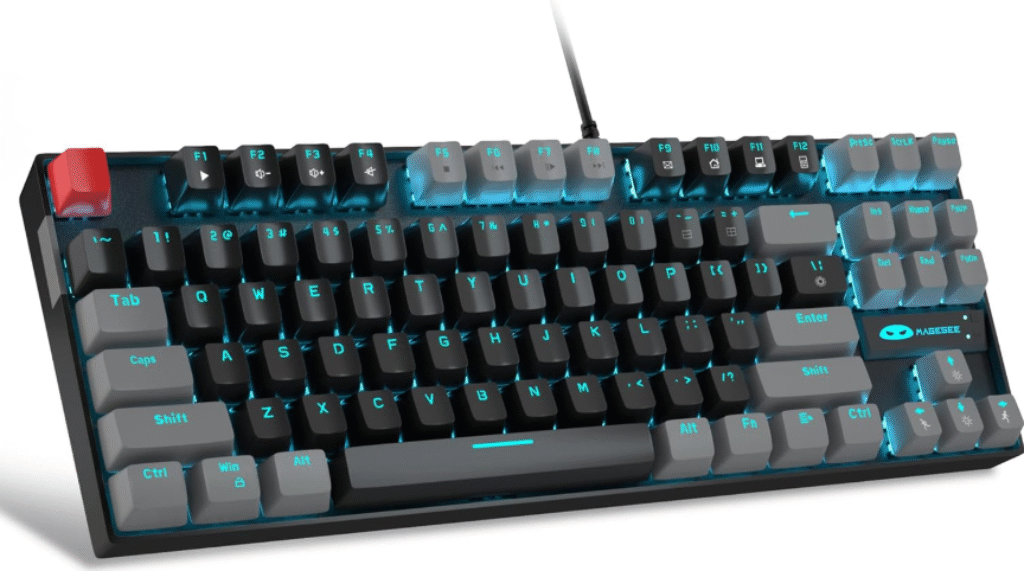
While MageGee keyboards are known for being user-friendly, a little extra knowledge can help you maximize your experience and ensure everything runs smoothly.
Understanding Different MageGee Models
MageGee offers a wide range of models, including the popular MK-Star, MK-Box, TS91, and MK-Storm. While most of them use the shortcuts outlined in this guide, there can be slight variations. For instance, the key used to cycle lighting modes (Ins, Del, \) might change. If you’re ever unsure, referring to your model-specific user manual is a great way to confirm the exact key combinations. This expert approach ensures you’re getting the most accurate information for your specific keyboard. Many of their compact models, like the Portable 60%, have received positive user feedback for their solid performance and value.
Do You Need to Install Drivers?
For adjusting settings and lighting, you do not need any software or drivers. However, to ensure your computer correctly recognizes the keyboard when you first plug it in, your operating system will install basic drivers automatically. According to official MageGee resources, these plug-and-play drivers work seamlessly with Windows, macOS, and Linux.
If you run into any connection problems, you can find official driver support on the MageGee support website.
Frequently Asked Questions (FAQ)
The primary method is to press and hold the Fn + Esc keys for 3-5 seconds until the backlights flash. This will restore the keyboard to its original, out-of-the-box settings and fix most common issues.
If Fn + Esc doesn’t work, you likely have a compact 60% model like the MK-Box. For these keyboards, the correct command is Fn + Spacebar, held for 3 seconds. If neither command works, try unplugging the keyboard for 30 seconds and connecting it to a different USB port.
Yes. Because the MK-Box is a 60% compact keyboard, it uses a different reset command. To perform a factory reset, press and hold the Fn + Spacebar keys together for 3 seconds. The keyboard lights will flash to confirm the reset is successful.
This issue usually means the keyboard is stuck or not receiving enough power. First, try a factory reset (Fn + Esc or Fn + Spacebar). If that doesn’t work, unplug the keyboard for 30 seconds and plug it back in. Finally, try connecting it to a different USB port, preferably one directly on your computer’s motherboard, to ensure it’s getting sufficient power.
Yes. For most RGB models, you can cycle through the different solid, static colors by pressing Fn + Del. Each press will switch to a new color like red, blue, green, or white, allowing you to easily match your keyboard’s backlight to your setup.
You can change the dynamic lighting modes by pressing Fn + Ins. On some models, the combination might be Fn + \ (backslash key). Repeatedly pressing this shortcut will cycle through all the built-in effects like breathing, wave, and reactive modes.
To perform a factory reset, press and hold Fn + Esc for about 3-5 seconds until the backlights flash. This will restore the keyboard to its original default settings and can solve common issues. For certain compact (60%) models, the reset combination is Fn + Spacebar.
Yes, MageGee keyboards are widely considered a great budget-friendly option for gaming. They feature responsive mechanical switches, anti-ghosting technology, and a durable build. Their simple, software-free design and vibrant backlighting make them a reliable plug-and-play choice for any gamer.
Your keyboard is likely in input-swap mode, a feature common on gaming keyboards. You can easily fix this by pressing the Fn + W key combination. This will instantly toggle the function and return your WASD and arrow keys to their normal layout.
Yes, MageGee keyboards are considered one of the best budget-friendly options for both gaming and general use. They offer a true mechanical typing experience, durable build quality for their price point, and reliable performance without needing any complicated software. While they may not have the premium features of high-end brands, they provide excellent value and are a great choice for a first mechanical keyboard.
💰Save More with Our Discounts & Coupons!
- 1
- 2
- 3
- …
- 6
- Next Page »
Your Keyboard, Your Style
Mastering your Magegee keyboard settings is all about getting comfortable with the Fn key. With no software to worry about, you have a powerful, reliable, and highly customizable tool ready for both gaming and productivity. From its durable build to its vibrant backlighting, your MageGee keyboard offers a premium experience without the complicated setup.
Did this guide help you customize your keyboard? Let us know your favorite lighting effect in the comments below, and share this cheat sheet with a friend!