If you’re trying to figure out how to reset or customize the RGB colors on your MageGee G12 gaming mouse, you’re in the right place. Good news: you don’t need to hunt for any complicated software. All the controls for its vibrant lighting and performance settings are built directly into the mouse itself.
This guide will provide a quick, simple walkthrough of the button combinations you need to master your mouse’s lighting, restore its default color cycle, and adjust its DPI settings in seconds.
Quick Answer: How to Control Your Mouse Color To reset your MageGee G12 mouse to its default 7-color breathing cycle, simply cycle through the modes using the
Backward + DPIbutton combination. To lock in a single static color, pressBackward + DPIuntil your desired color appears.
How Do I Reset My MageGee G12 Mouse Color to Default?
Many users look for a “reset” button, but the MageGee G12 simplifies this. There is no physical reset button; instead, “resetting the color” just means returning the mouse to its factory default lighting mode.
The default mode for the G12 mouse is a 7-color cycle breathing effect, which smoothly transitions between blue, purple, red, green, cyan, white, and yellow.
If you have set a single color and want to return to the default rainbow cycle, you can typically do so by continuing to cycle through the lighting modes using the same command you used to set it. Pressing the color-changing combination after the last single-color option will usually revert it back to the main cycle.
How Do I Change the Colors on My MageGee Mouse?
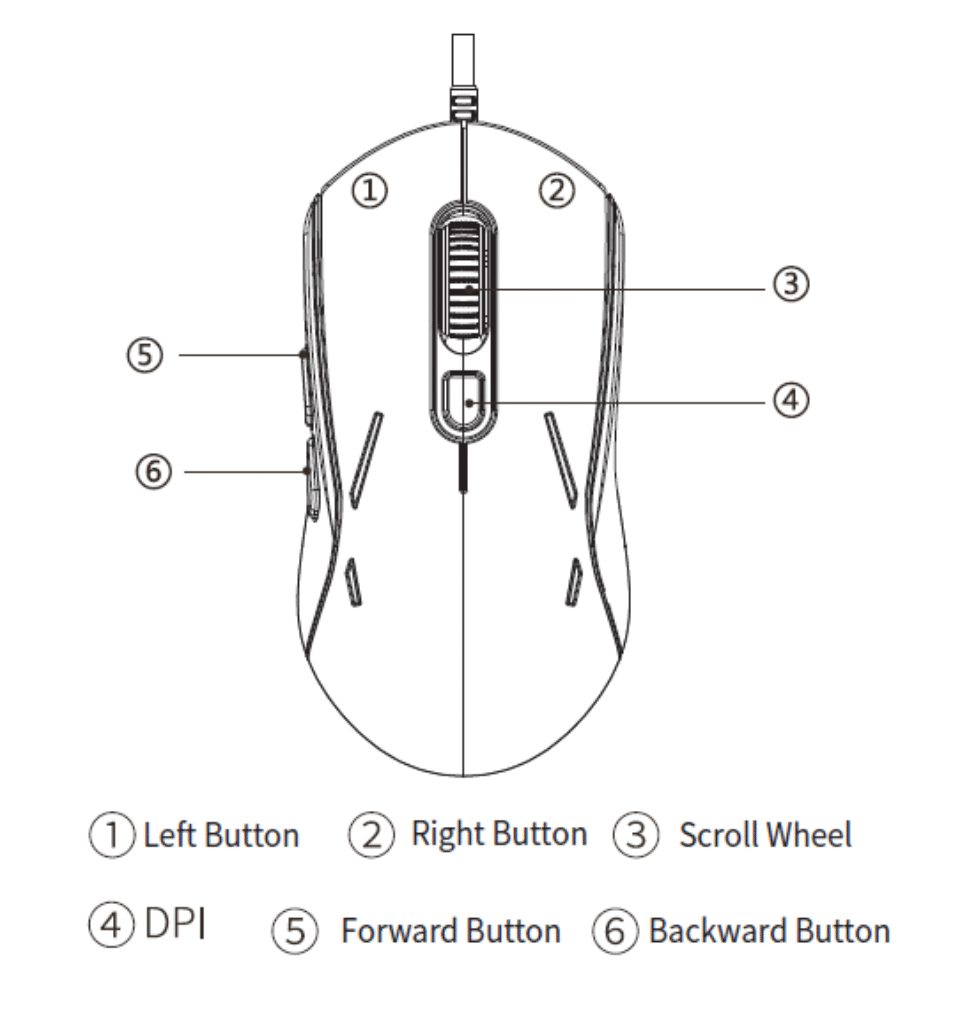
Controlling the RGB lighting on your MageGee G12 is all about one key combination. This hardware-based control means you never have to install or open a software application.
Here is the step-by-step method based on the official manual’s functions:
- Enter Single-Color Mode: To stop the multi-color cycle and choose just one, press and hold the
Backwardside button + theDPIbutton simultaneously. - Select Your Color: Each time you press this combination, the mouse will switch to a different single-color breathing mode (e.g., solid red, then solid blue, etc.).
- Lock in Your Choice: Once the mouse is displaying the color you want, you are all set. The mouse will remain on this single color.
This is the primary way to customize your mouse’s aesthetic and match it to the rest of your gaming setup.
How to Turn the Mouse Lights On and Off
If you prefer a more stealthy look or want to ensure no lights are on in a dark room, you can easily disable the backlighting completely.
- To turn the light off: Press and hold the DPI button for 3 seconds.
- To turn the light on: Repeat the same action—press and hold the DPI button for 3 seconds.
This simple toggle is perfect for quickly switching between a full RGB showcase and a non-lit, minimalist setup.
What Are the DPI Settings for the MageGee G12 Mouse?
The DPI (Dots Per Inch) determines your mouse’s sensitivity. A higher DPI means the cursor moves further and faster across the screen with less physical movement. The MageGee G12 comes with six preset DPI levels, making it versatile for everything from precise design work to fast-paced gaming.
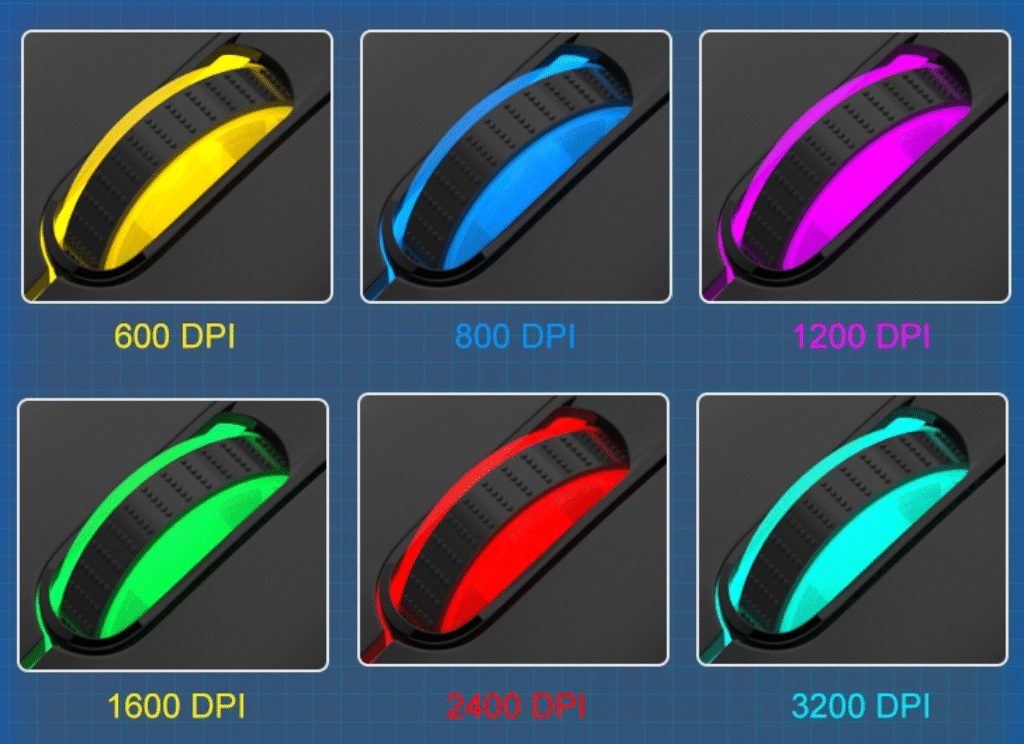
The G12 has dedicated DPI adjustment buttons (usually below the scroll wheel) to switch between these levels on the fly.
| DPI Level | Best For |
|---|---|
| 600 DPI | Ultra-precise tasks (e.g., pixel-by-pixel photo editing, sniping in games). |
| 800 DPI | Standard for most productivity and web browsing. |
| 1200 DPI | A slightly faster option for general use. |
| 1600 DPI | A common setting for many FPS and action gamers. |
| 2400 DPI | High sensitivity for fast-paced gaming on standard HD monitors. |
| 3200 DPI | Very high sensitivity, best for high-resolution monitors (1440p or 4K). |
Frequently Asked Questions (FAQ)
No, the MageGee G12 is a plug-and-play device and does not have or require any software. All customization for lighting and DPI is handled directly through button combinations on the mouse itself.
The mouse cycles through or can be set to one of seven distinct colors: blue, purple, red, green, cyan, white, and yellow.
Yes, the MageGee G12 is considered a very capable budget gaming mouse. With its ergonomic ambidextrous design, six adjustable DPI levels up to 3200, and vibrant RGB lighting, it offers excellent features for its price point and is a great choice for both casual and dedicated gamers.
If your mouse color is stuck, it is likely in single-color mode. First, try using the Backward + DPI key combination to cycle to the next color or back to the default 7-color breathing mode. If that doesn’t work, perform a power cycle by unplugging the mouse, waiting 30 seconds, and plugging it back in.
Conclusion: Simple Control, Brilliant Results
Mastering your MageGee G12 mouse’s settings is refreshingly simple. By using a few intuitive button combinations, you can get the exact look and performance you want without ever touching a piece of software. Whether you’re resetting to the default rainbow cycle or locking in a custom color to match your rig, you have all the control you need right at your fingertips.
Did this guide help you solve your issue? Share this article with a friend, and don’t forget to check out our complete guide on how to reset and customize your MageGee keyboard!